Difference between revisions of "Guilds"
| [checked revision] | [checked revision] |
m (→Transparent Guild Logo) |
m |
||
| Line 71: | Line 71: | ||
=== Guild Dungeons === | === Guild Dungeons === | ||
| + | |||
| + | === Other information === | ||
{{top}} | {{top}} | ||
Revision as of 22:57, 11 July 2025
< Metin2Wiki < Guilds
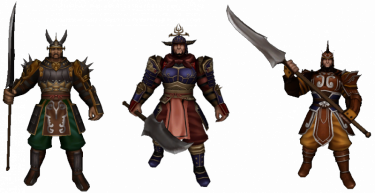
The Guardian can create guilds
Contents
General and setup
- Do you feel like you can manage a group of players while fighting together, have a fond friendship or perhaps share the same interests? Then you might just want to create a guild.
- You are eligible to create a guild if you are at least level 40 and have 200.000 Yang. You can then go to standing in each center town of map1. You have to come up with a guild name that is not already taken. Take note that the TOC and game rules also apply to choosing names of guilds.

- You cannot create a guild if you have left a previous guild in the first 3 days. (This also applies to players who want to join a (new) guild.)
- The first thing you might want to do is setting up additional permissions for other members. You can read all about that a little further down below.
- You can open up the guild tab with ALT + G or open the community window ALT + M and select guild tab > guild information.
- If you are not in any guild yet, you will see a guild ranking list instead.
- You can also see guilds that are open for applications, marked with a check symbol. Guild leaders can setup an application by Guardian.
- Guild needs to be at least level 6, and have 100.000 Yang in the deposit. It will be visible after the next maintenance.
- If you wish to leave or disband the guild, you can talk to Guardian. You won't be able to join another guild for 3 days. You can also let a member, who has the permission, to kick you instead. You cannot kick a guild leader.
- It is possible to change the guild leader instead of deleting the guild. Go to the member list and select the "Change Guild Leader" button. You also need a

 Ring of Successor.
- It is possible to change the guild leader instead of deleting the guild. Go to the member list and select the "Change Guild Leader" button. You also need a
Guild Logo
|
|
 | |
Transparent Guild Logo
- It is possible to make parts of the logo transparent. This means, that some pixels can be seen through.
- Pixels to be transparent must be filled with pink (color code #FF00FF) and saved as .bmp format
- Tip: The default program on your computer (Paint) has the correct color pre-set in the color scheme above and can directly save it as .bmp
- Semi-transparent is also possible. However, this file must be saved as .tga. format. This requires a different program to make adjustments to this type of file.
- How a transparent logo looks like ingame (on the left ingame, and the logo on the right - feel free to use it):


Leveling up

Benefits of leveling up
Guild messages
Member list
Permissions

Guild War
Guild Skills



